
JPG to SVG Conversion in CorelDRAW
CorelDRAW is the best software for converting JPG to SVG. Import the JPG image, using the Quick Trace or Outline Trace tool, and export the traced vector as a high quality SVG file.
CORELDRAW TUTORIAL
6 min read
JPG to SVG Conversion in CorelDRAW
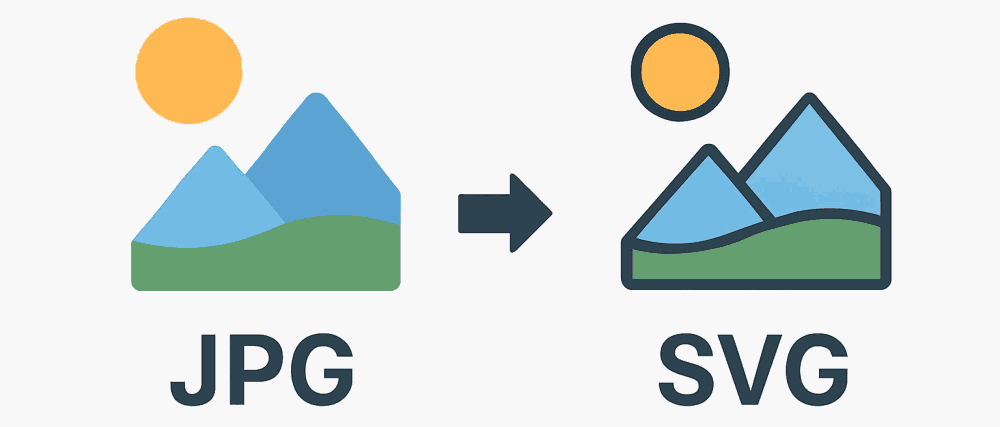
To convert a JPG to SVG in CorelDRAW, import the JPG image, trace it using the "Quick Trace" or "Outline Trace" tool, then export the traced vector as an SVG file via File > Export > SVG.

JPG SVG Conversion
It is very easy to convert an image in JPG to SVG image format using CorelDraw, which is the world's best software to do JPG SVG Conversion in just a couple of mouse clicks. Read the detailed explanation below
1. Introduction to JPG to SVG Formats
JPG (or JPEG) is a raster image format widely used for photographs and web graphics. It compresses images using lossy compression, which reduces file size but sacrifices some quality. SVG (Scalable Vector Graphics), on the other hand, is a vector format that represents images using mathematical equations, paths, and shapes. Unlike JPG, SVG files can be scaled infinitely without losing clarity. This makes SVG ideal for logos, icons, and illustrations. Understanding the fundamental difference between raster and vector formats is the first step toward appreciating why JPG SVG conversion is so valuable.
2. Why JPG SVG Conversion is Necessary
The primary reason why JPG SVG conversion becomes necessary is scalability. JPG images lose quality when enlarged, appearing pixelated or blurry. SVG images remain crisp at any size, whether displayed on a small mobile screen or printed on a billboard. Additionally, SVG files are editable, allowing designers to tweak shapes, colors, and text easily. For branding, this flexibility is crucial. A company logo saved as JPG may look fuzzy on large prints, but in SVG, it retains sharpness. JPG SVG Conversion also improves accessibility, as SVGs can be indexed by search engines and manipulated with CSS.
3. Raster vs. Vector: Key Differences
Raster images like JPG are composed of pixels arranged in a grid. Each pixel has a specific color value, and together, they form the image. Vector images like SVG are defined by mathematical formulas like lines, curves, and polygons. This difference means raster images are resolution-dependent, while vector images are resolution-independent. For example, zooming into a JPG reveals individual pixels, whereas zooming into an SVG shows smooth lines. This distinction is critical in design and JPG SVG Conversion, as vectors are better suited for graphics requiring precision and scalability, while rasters are better for detailed photographs.
4. Common Use Cases for JPG to SVG
SVG is widely used in web design, branding, and user interface development. Logos, icons, charts, and illustrations are often stored in SVG format because they scale seamlessly across devices. SVGs also support interactivity and animation, making them useful for dynamic web applications that makes JPG to SVG a necessity. For example, a website might use an SVG logo that changes color when hovered over. Another use case is data visualization, where charts and graphs are rendered in SVG for clarity. JPG SVG Conversion allows designers to repurpose raster images into scalable, interactive assets.
5. Challenges in JPG SVG Conversion
Converting JPG to SVG is not always straightforward. JPGs are pixel-based, so the JPG SVG conversion process involves tracing outlines and approximating shapes. Complex photographs with gradients and textures may not convert cleanly, resulting in large, complicated SVG files. Simplification is often necessary, which can lead to loss of detail. Another challenge is file size. SVGs with too many paths can become heavy and slow to render. Designers must balance accuracy with efficiency, often manually editing the SVG after conversion to optimize performance.
6. Manual JPG SVG Conversion Using Design Software
One way to convert JPG to SVG is through manual tracing in design software like CorelDraw, which allows users to import a JPG and trace its outlines using vector tools. Manual conversion provides control over the final result, ensuring clean lines and optimized paths. Designers can simplify shapes, adjust curves, and remove unnecessary details. While time-consuming, manual conversion is ideal for logos and simple graphics where precision matters. CorelDraw allows creative freedom, as designers can reinterpret the raster image, like JPG, into a stylized vector image like SVG.
7. Automatic JPG SVG Conversion Tool
Several online tools and software applications, like CorelDraw, automate JPG SVG conversion. CorelDRAW has “Trace Bitmap” feature that analyzes the JPG and generates vector paths. Automatic conversion is fast and convenient, especially for beginners. However, results vary depending on the complexity of the image. Simple logos convert well, while detailed photographs may produce messy SVG. Automatic JPG SVG Conversion tools like CorelDraw includes options to adjust threshold, smoothing, and color reduction, helping users refine the output. These tools are useful for quick conversions but may require manual cleanup afterward.
8. Step-by-Step JG SVG Conversion Process
The general process of converting JPG to SVG involves several steps:
Import the JPG into CorelDraw.
Use tracing functions to detect edges and shapes.
Adjust settings like threshold and smoothing.
Simplify paths to reduce complexity.
Edit manually to refine details.
Save the file in SVG format.
This workflow ensures that the final JPG to SVG is both accurate and efficient. Beginners can start with automatic tracing, while professionals often combine automation with manual editing for best results in CorelDraw.
9. Optimizing SVG Files for Web Use
After JPG SVG conversion, the SVG files should be optimized for performance. Large, complex SVG can slow down websites. Optimization involves reducing unnecessary paths, simplifying shapes, and minimizing file size by removing redundant attributes and compressing data. Designers should also consider accessibility, adding descriptive titles and metadata. Optimized SVG to load faster, improve SEO, and enhance user experience. This step is crucial when converting JPG to SVG for use in web design, ensuring scalability without sacrificing speed.
10. Benefits of JPG to SVG in Branding
For branding, SVG offers unmatched advantages. Logos must appear sharp across diverse platforms like websites, social media, print, and merchandise. A JPG logo may look fine on a website, but blurry on a billboard. SVG ensures consistency, maintaining clarity at any size. Additionally, SVG logos are editable, allowing easy updates to colors or shapes. They can also be animated, adding dynamic flair to digital branding. Converting logos in JPG to SVG is a strategic move for businesses seeking professional, scalable, and future-proof brand assets.
11. JPG SVG Conversion in Web Development
Web developers prefer SVG for icons, illustrations, and UI elements. Unlike JPG, SVG integrates seamlessly with HTML and CSS. Developers can manipulate SVGs directly in code, changing colors, adding animations, or making them responsive. For example, a navigation icon in SVG can adapt to dark mode automatically. SVG also supports accessibility features, allowing screen readers to interpret them. JPG SVG conversion changes assets into SVG that empowers developers to build interactive, scalable, and accessible web applications.
12. Comparing JPG to SVG File Sizes
JPG files are typically smaller than SVGs when storing photographs, thanks to compression. However, for simple graphics like logos, SVGs are often smaller because they store mathematical instructions instead of pixel data. For example, a logo saved as JPG might be 200 KB, while the same logo in SVG could be only 20 KB. This efficiency makes JPG SVG Conversion ideal for web graphics. However, converting complex JPGs into SVG can result in large files, so optimization is necessary.
13. Converting Logos from JPG to SVG
Logos are the most common candidates for JPG to SVG conversion. A logo saved as JPG may look fine on a website but becomes pixelated when enlarged. JPG SVG Conversion ensures sharpness across all sizes. The process involves tracing the logo’s outlines, simplifying shapes, and refining details. Designers worldwide use CorelDraw for JPG SVG Conversion that makes a logo that can be used in websites, apps, and print materials, ensuring consistent branding everywhere.
14. Convert Photographs from JPG to SVG
Converting photographs from JPG to SVG is more challenging. Photos contain complex details, gradients, and textures that don’t translate well into vector paths. Automatic conversion often produces abstract, posterized versions of the photo. While this can be artistic, it rarely replicates the original image accurately. Photographs are better kept in raster formats, but SVG conversion can be useful for stylized effects or illustrations based on photos. Designers must decide whether the JPG to SVG conversion serves the intended purpose.
15. Tools for Beginners
Beginners can use CorelDraw to convert JPG to SVG easily. CorelDraw provide user-friendly interfaces, requiring minimal technical knowledge. Users simply upload a JPG, adjust settings, and download the SVG. While results may need refinement, these tools are excellent starting points. They also introduce beginners to the concept of vector graphics, helping them understand scalability and optimization. For simple logos or icons, beginner tools often produce satisfactory results.
16. JPG to SVG Provides Animation Possibilities
One advantage of JPG SVG conversion is animation. SVG can be animated using CSS, JavaScript, or SMIL. For example, a logo can be made to draw itself on screen, or an icon can change color when clicked. This interactivity enhances user engagement. Converting JPG to SVG unlocks these possibilities, transforming static images into dynamic assets. Animation is particularly useful in web design, presentations, and marketing campaigns, where movement captures attention.